AJAX Introduction
AJAX is a developer's dream, because you can:
- Read data from a web server - after the page has loaded
- Update a web page without reloading the page
- Send data to a web server - in the background
AJAX Example Explained
HTML Page
<html>
<body>
<div id="demo">
<h2>Let AJAX change this text</h2>
<button type="button" onclick="loadDoc()">Change Content</button>
</div>
</body>
</html>
The HTML page contains a <div> section and a <button>.
The <div> section is used to display information from a server.
The <button> calls a function (if it is clicked).
The function requests data from a web server and displays it:
Function loadDoc()
const xhttp = new XMLHttpRequest();
xhttp.onload = function() {
document.getElementById("demo").innerHTML = this.responseText;
}
xhttp.open("GET", "ajax_info.txt", true);
xhttp.send();
}
What is AJAX?
AJAX = Asynchronous JavaScript And XML.
AJAX is not a programming language.
AJAX just uses a combination of:
- A browser built-in
XMLHttpRequestobject (to request data from a web server) - JavaScript and HTML DOM (to display or use the data)
AJAX is a misleading name. AJAX applications might use XML to transport data, but it is equally common to transport data as plain text or JSON text.
AJAX allows web pages to be updated asynchronously by exchanging data with a web server behind the scenes. This means that it is possible to update parts of a web page, without reloading the whole page.
How AJAX Works
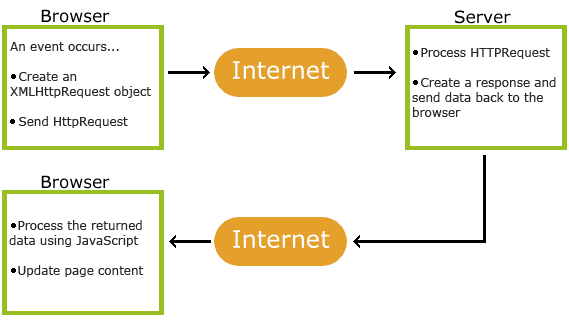
- 1. An event occurs in a web page (the page is loaded, a button is clicked)
- 2. An XMLHttpRequest object is created by JavaScript
- 3. The XMLHttpRequest object sends a request to a web server
- 4. The server processes the request
- 5. The server sends a response back to the web page
- 6. The response is read by JavaScript
- 7. Proper action (like page update) is performed by JavaScript
Modern Browsers (Fetch API)
Modern Browsers can use Fetch API instead of the XMLHttpRequest Object.
The Fetch API interface allows web browser to make HTTP requests to web servers.
If you use the XMLHttpRequest Object, Fetch can do the same in a simpler way.
AJAX - The XMLHttpRequest Object
The keystone of AJAX is the XMLHttpRequest object.
- Create an XMLHttpRequest object
- Define a callback function
- Open the XMLHttpRequest object
- Send a Request to a server
The XMLHttpRequest Object
All modern browsers support the XMLHttpRequest object.
The XMLHttpRequest object can be used to exchange data with a web server
behind the scenes. This means that it is possible to update parts of a web page, without reloading
the whole page.
Create an XMLHttpRequest Object
All modern browsers (Chrome, Firefox, IE, Edge, Safari, Opera) have a
built-in XMLHttpRequest object.
Syntax for creating an XMLHttpRequest object:
Define a Callback Function
A callback function is a function passed as a parameter to another function.
In this case, the callback function should contain the code to execute when the response is ready.
// What to do when the response is ready
}
Send a Request
To send a request to a server, you can use the open() and send() methods of
the XMLHttpRequest object:
xhttp.send();
Example
const xhttp = new XMLHttpRequest();
// Define a callback function
xhttp.onload = function() {
// Here you can use the Data
}
// Send a request
xhttp.open("GET", "ajax_info.txt");
xhttp.send();
Access Across Domains
For security reasons, modern browsers do not allow access across domains.
This means that both the web page and the XML file it tries to load, must be located on the same server.
The examples on W3Schools all open XML files located on the W3Schools domain.
If you want to use the example above on one of your own web pages, the XML files you load must be located on your own server.
XMLHttpRequest Object Methods
| Method | Description |
|---|---|
| new XMLHttpRequest() | Creates a new XMLHttpRequest object |
| abort() | Cancels the current request |
| getAllResponseHeaders() | Returns header information |
| getResponseHeader() | Returns specific header information |
| open(method, url, async, user, psw) | Specifies the request method: the request type GET or POST url: the file location async: true (asynchronous) or false (synchronous) user: optional user name psw: optional password |
| send() | Sends the request to the server Used for GET requests |
| send(string) | Sends the request to the server. Used for POST requests |
| setRequestHeader() | Adds a label/value pair to the header to be sent |
XMLHttpRequest Object Properties
| Property | Description |
|---|---|
| onload | Defines a function to be called when the request is received (loaded) |
| onreadystatechange | Defines a function to be called when the readyState property changes |
| readyState | Holds the status of the XMLHttpRequest. 0: request not initialized 1: server connection established 2: request received 3: processing request 4: request finished and response is ready |
| responseText | Returns the response data as a string |
| responseXML | Returns the response data as XML data |
| status | Returns the status-number of a request 200: "OK" 403: "Forbidden" 404: "Not Found" For a complete list go to the Http Messages Reference |
| statusText | Returns the status-text (e.g. "OK" or "Not Found") |
The onload Property
With the XMLHttpRequest object you can define a callback function to be
executed when the request receives an answer.
The function is defined in the onload property of
the XMLHttpRequest object:
Example
document.getElementById("demo").innerHTML = this.responseText;
}
xhttp.open("GET", "ajax_info.txt");
xhttp.send();
Multiple Callback Functions
If you have more than one AJAX task in a website, you should create one function for executing
the XMLHttpRequest object, and one callback function for each AJAX task.
The function call should contain the URL and what function to call when the response is ready.
Example
loadDoc("url-2", myFunction2);
function loadDoc(url, cFunction) {
const xhttp = new XMLHttpRequest();
xhttp.onload = function() {cFunction(this);}
xhttp.open("GET", url);
xhttp.send();
}
function myFunction1(xhttp) {
// action goes here
}
function myFunction2(xhttp) {
// action goes here
}
The onreadystatechange Property
The readyState property holds the status of the XMLHttpRequest.
The onreadystatechange property defines a callback function to be executed
when the readyState changes.
The status property and the statusText properties hold
the status of the XMLHttpRequest object.
| Property | Description |
|---|---|
| onreadystatechange | Defines a function to be called when the readyState property changes |
| readyState | Holds the status of the XMLHttpRequest. 0: request not initialized 1: server connection established 2: request received 3: processing request 4: request finished and response is ready |
| status | 200: "OK" 403: "Forbidden" 404: "Page not found" For a complete list go to the Http Messages Reference |
| statusText | Returns the status-text (e.g. "OK" or "Not Found") |
The onreadystatechange function is called every time the readyState changes.
When readyState is 4 and status is 200, the response is ready:
Example
const xhttp = new XMLHttpRequest();
xhttp.onreadystatechange = function() {
if (this.readyState == 4 && this.status == 200) {
document.getElementById("demo").innerHTML =
this.responseText;
}
};
xhttp.open("GET", "ajax_info.txt");
xhttp.send();
}
The onreadystatechange event is triggered four times (1-4), one time for
each change in the readyState.
AJAX - XMLHttpRequest
The XMLHttpRequest object is used to request data from a server.
Send a Request To a Server
To send a request to a server, we use the open() and send() methods of
the XMLHttpRequest object:
xhttp.send();
| Method | Description |
|---|---|
| open(method, url, async) | Specifies the type of request method: the type of request: GET or POST url: the server (file) location async: true (asynchronous) or false (synchronous) |
| send() | Sends the request to the server (used for GET) |
| send(string) | Sends the request to the server (used for POST) |
The url - A File On a Server
The url parameter of the open() method, is an address to a file on a server:
The file can be any kind of file, like .txt and .xml, or server scripting files like .asp and .php (which can perform actions on the server before sending the response back).
Asynchronous - True or False?
Server requests should be sent asynchronously.
The async parameter of the open() method should be set to true:
By sending asynchronously, the JavaScript does not have to wait for the server response, but can instead:
- execute other scripts while waiting for server response
- deal with the response after the response is ready
The default value for the async parameter is async = true.
You can safely remove the third parameter from your code.
Synchronous XMLHttpRequest (async = false) is not recommended because the JavaScript will stop executing until the server response is ready. If the server is busy or slow, the application will hang or stop.
GET or POST?
GET is simpler and faster than POST, and can be used in most
cases.
However, always use POST requests when:
- A cached file is not an option (update a file or database on the server).
- Sending a large amount of data to the server (POST has no size limitations).
- Sending user input (which can contain unknown characters), POST is more robust and secure than GET.
GET Requests
A simple GET request:
In the example above, you may get a cached result. To avoid this, add a unique ID to the URL:
If you want to send information with the GET method, add the information to
the URL:
How the server uses the input and how the server responds to a request, is explained in a later chapter.
POST Requests
A simple POST request:
To POST data like an HTML form, add an HTTP header with setRequestHeader(). Specify
the data you want to send in the send() method:
Example
xhttp.setRequestHeader("Content-type", "application/x-www-form-urlencoded");
xhttp.send("fname=Henry&lname=Ford");
| Method | Description |
|---|---|
| setRequestHeader(header, value) | Adds HTTP headers to the request header: specifies the header name value: specifies the header value |
Synchronous Request
To execute a synchronous request, change the third parameter in
the open() method to false:
Sometimes async = false are used for quick testing. You will also find synchronous requests in older JavaScript code.
Since the code will wait for server completion, there is no need for
an onreadystatechange function:
Example
xhttp.send();
document.getElementById("demo").innerHTML = xhttp.responseText;
AJAX - Server Response
Server Response Properties
| Property | Description |
|---|---|
| responseText | get the response data as a string |
| responseXML | get the response data as XML data |
The responseText Property
The responseText property returns the server response as a JavaScript string,
and you can use it accordingly:
The responseXML Property
The XMLHttpRequest object has an in-built XML parser.
The responseXML property returns the server response as an XML DOM object.
Using this property you can parse the response as an XML DOM object:
Example
Request the file cd_catalog.xml and parse the response:
const x = xmlDoc.getElementsByTagName("ARTIST");
let txt = "";
for (let i = 0; i < x.length; i++) {
txt += x[i].childNodes[0].nodeValue + "<br>";
}
document.getElementById("demo").innerHTML = txt;
xhttp.open("GET", "cd_catalog.xml");
xhttp.send();
Server Response Methods
| Method | Description |
|---|---|
| getResponseHeader() | Returns specific header information from the server resource |
| getAllResponseHeaders() | Returns all the header information from the server resource |
The getAllResponseHeaders() Method
The getAllResponseHeaders() method returns all header information from the
server response.
Example
xhttp.onload = function() {
document.getElementById("demo").innerHTML =
this.getAllResponseHeaders();
}
xhttp.open("GET", "ajax_info.txt");
xhttp.send();
The getResponseHeader() Method
The getResponseHeader() method returns specific header information from the
server response.
Example
xhttp.onload = function() {
document.getElementById("demo").innerHTML =
this.getResponseHeader("Last-Modified");
}
xhttp.open("GET", "ajax_info.txt");
xhttp.send();
AJAX XML Example
AJAX can be used for interactive communication with an XML file.
AJAX XML Example
The following example will demonstrate how a web page can fetch information from an XML file with AJAX:
Example Explained
When a user clicks on the "Get CD info" button above, the loadDoc() function
is executed.
The loadDoc() function creates
an XMLHttpRequest object, adds the function to be executed when the server
response is ready, and sends the request off to the server.
When the server response is ready, an HTML table is built, nodes (elements) are extracted from the XML file, and it finally updates the element "demo" with the HTML table filled with XML data:
const xhttp = new XMLHttpRequest();
xhttp.onload = function() {myFunction(this);}
xhttp.open("GET", "cd_catalog.xml");
xhttp.send();
}
function myFunction(xml) {
const xmlDoc = xml.responseXML;
const x = xmlDoc.getElementsByTagName("CD");
let table="<tr><th>Artist</th><th>Title</th></tr>";
for (let i = 0; i <x.length; i++) {
table += "<tr><td>" +
x[i].getElementsByTagName("ARTIST")[0].childNodes[0].nodeValue +
"</td><td>" +
x[i].getElementsByTagName("TITLE")[0].childNodes[0].nodeValue +
"</td></tr>";
}
document.getElementById("demo").innerHTML = table;
}
The XML File
The XML file used in the example above looks like this: "cd_catalog.xml".
AJAX PHP Example
AJAX is used to create more interactive applications.
AJAX PHP Example
The following example demonstrates how a web page can communicate with a web server while a user types characters in an input field:
Example
Start typing a name in the input field below:
Suggestions:
First name:
Example Explained
In the example above, when a user types a character in the input field, a function
called showHint() is executed.
The function is triggered by the onkeyup event.
Here is the code:
Example
<p>Suggestions: <span id="txtHint"></span></p>
<form>
First name: <input type="text" onkeyup="showHint(this.value)">
</form>
<script>
function showHint(str) {
if (str.length == 0) {
document.getElementById("txtHint").innerHTML = "";
return;
} else {
const xmlhttp = new XMLHttpRequest();
xmlhttp.onload = function() {
document.getElementById("txtHint").innerHTML = this.responseText;
}
xmlhttp.open("GET", "gethint.php?q=" + str);
xmlhttp.send();
}
}
</script>
Code explanation:
First, check if the input field is empty (str.length == 0). If it is, clear the content of the txtHint placeholder and exit the function.
However, if the input field is not empty, do the following:
- Create an XMLHttpRequest object
- Create the function to be executed when the server response is ready
- Send the request off to a PHP file (gethint.php) on the server
- Notice that q parameter is added gethint.php?q="+str
- The str variable holds the content of the input field
The PHP File - "gethint.php"
The PHP file checks an array of names, and returns the corresponding name(s) to the browser:
// Array with names
$a[] = "Anna";
$a[] = "Brittany";
$a[] = "Cinderella";
$a[] = "Diana";
$a[] = "Eva";
$a[] = "Fiona";
$a[] = "Gunda";
$a[] = "Hege";
$a[] = "Inga";
$a[] = "Johanna";
$a[] = "Kitty";
$a[] = "Linda";
$a[] = "Nina";
$a[] = "Ophelia";
$a[] = "Petunia";
$a[] = "Amanda";
$a[] = "Raquel";
$a[] = "Cindy";
$a[] = "Doris";
$a[] = "Eve";
$a[] = "Evita";
$a[] = "Sunniva";
$a[] = "Tove";
$a[] = "Unni";
$a[] = "Violet";
$a[] = "Liza";
$a[] = "Elizabeth";
$a[] = "Ellen";
$a[] = "Wenche";
$a[] = "Vicky";
// get the q parameter from URL
$q = $_REQUEST["q"];
$hint = "";
// lookup all hints from array if $q is different from ""
if ($q !== "") {
$q = strtolower($q);
$len=strlen($q);
foreach($a as $name) {
if (stristr($q, substr($name, 0, $len))) {
if ($hint === "") {
$hint = $name;
} else {
$hint .= ", $name";
}
}
}
}
// Output "no suggestion" if no hint was found or output correct values
echo $hint === "" ? "no suggestion" : $hint;
?>
AJAX ASP Example
AJAX is used to create more interactive applications.
AJAX ASP Example
The following example will demonstrate how a web page can communicate with a web server while a user type characters in an input field:
Example
Start typing a name in the input field below:
Suggestions:
First name:
Example Explained
In the example above, when a user types a character in the input field, a function
called showHint() is executed.
The function is triggered by the onkeyup event.
Here is the code:
Example
<p>Suggestions: <span id="txtHint"></span></p>
<form>
First name: <input type="text" onkeyup="showHint(this.value)">
</form>
<script>
function showHint(str) {
if (str.length == 0) {
document.getElementById("txtHint").innerHTML = "";
return;
} else {
const xmlhttp = new XMLHttpRequest();
xmlhttp.onload = function() {
document.getElementById("txtHint").innerHTML = this.responseText;
}
xmlhttp.open("GET", "gethint.asp?q=" + str);
xmlhttp.send();
}
}
</script>
Code explanation:
First, check if the input field is empty (str.length == 0). If it is, clear the content of the txtHint placeholder and exit the function.
However, if the input field is not empty, do the following:
- Create an XMLHttpRequest object
- Create the function to be executed when the server response is ready
- Send the request off to an ASP file (gethint.asp) on the server
- Notice that q parameter is added gethint.asp?q="+str
- The str variable holds the content of the input field
The ASP File - "gethint.asp"
The ASP file checks an array of names, and returns the corresponding name(s) to the browser:
response.expires=-1
dim a(30)
'Fill up array with names
a(1)="Anna"
a(2)="Brittany"
a(3)="Cinderella"
a(4)="Diana"
a(5)="Eva"
a(6)="Fiona"
a(7)="Gunda"
a(8)="Hege"
a(9)="Inga"
a(10)="Johanna"
a(11)="Kitty"
a(12)="Linda"
a(13)="Nina"
a(14)="Ophelia"
a(15)="Petunia"
a(16)="Amanda"
a(17)="Raquel"
a(18)="Cindy"
a(19)="Doris"
a(20)="Eve"
a(21)="Evita"
a(22)="Sunniva"
a(23)="Tove"
a(24)="Unni"
a(25)="Violet"
a(26)="Liza"
a(27)="Elizabeth"
a(28)="Ellen"
a(29)="Wenche"
a(30)="Vicky"
'get the q parameter from URL
q=ucase(request.querystring("q"))
'lookup all hints from array if length of q>0
if len(q)>0 then
hint=""
for i=1 to 30
if q=ucase(mid(a(i),1,len(q))) then
if hint="" then
hint=a(i)
else
hint=hint & " , " & a(i)
end if
end if
next
end if
'Output "no suggestion" if no hint were found
'or output the correct values
if hint="" then
response.write("no suggestion")
else
response.write(hint)
end if
%>
AJAX Database Example
AJAX can be used for interactive communication with a database.
AJAX Database Example
The following example will demonstrate how a web page can fetch information from a database with AJAX:
Example Explained - The showCustomer() Function
When a user selects a customer in the dropdown list above, a function
called showCustomer() is executed. The function is triggered by
the onchange event:
showCustomer
if (str == "") {
document.getElementById("txtHint").innerHTML = "";
return;
}
const xhttp = new XMLHttpRequest();
xhttp.onload = function() {
document.getElementById("txtHint").innerHTML = this.responseText;
}
xhttp.open("GET", "getcustomer.php?q="+str);
xhttp.send();
}
The showCustomer() function does the following:
- Check if a customer is selected
- Create an XMLHttpRequest object
- Create the function to be executed when the server response is ready
- Send the request off to a file on the server
- Notice that a parameter (q) is added to the URL (with the content of the dropdown list)
The AJAX Server Page
The page on the server called by the JavaScript above is a PHP file called "getcustomer.php".
The source code in "getcustomer.php" runs a query against a database, and returns the result in an HTML table:
$mysqli = new mysqli("servername", "username", "password", "dbname");
if($mysqli->connect_error) {
exit('Could not connect');
}
$sql = "SELECT customerid, companyname, contactname, address, city, postalcode, country
FROM customers WHERE customerid = ?";
$stmt = $mysqli->prepare($sql);
$stmt->bind_param("s", $_GET['q']);
$stmt->execute();
$stmt->store_result();
$stmt->bind_result($cid, $cname, $name, $adr, $city, $pcode, $country);
$stmt->fetch();
$stmt->close();
echo "<table>";
echo "<tr>";
echo "<th>CustomerID</th>";
echo "<td>" . $cid . "</td>";
echo "<th>CompanyName</th>";
echo "<td>" . $cname . "</td>";
echo "<th>ContactName</th>";
echo "<td>" . $name . "</td>";
echo "<th>Address</th>";
echo "<td>" . $adr . "</td>";
echo "<th>City</th>";
echo "<td>" . $city . "</td>";
echo "<th>PostalCode</th>";
echo "<td>" . $pcode . "</td>";
echo "<th>Country</th>";
echo "<td>" . $country . "</td>";
echo "</tr>";
echo "</table>";
?>
XML Applications
This chapter demonstrates some HTML applications using XML, HTTP, DOM, and JavaScript.
The XML Document Used
In this chapter we will use the XML file called "cd_catalog.xml".
Display XML Data in an HTML Table
This example loops through each <CD> element, and displays the values of the <ARTIST> and the <TITLE> elements in an HTML table:
Example
<script>
function loadXMLDoc() {
const xhttp = new XMLHttpRequest();
xhttp.onload = function() {
const xmlDoc = xhttp.responseXML;
const cd = xmlDoc.getElementsByTagName("CD");
myFunction(cd);
}
xhttp.open("GET", "cd_catalog.xml");
xhttp.send();
}
function myFunction(cd) {
let table="<tr><th>Artist</th><th>Title</th></tr>";
for (let i = 0; i < cd.length; i++) {
table += "<tr><td>" +
cd[i].getElementsByTagName("ARTIST")[0].childNodes[0].nodeValue +
"</td><td>" +
cd[i].getElementsByTagName("TITLE")[0].childNodes[0].nodeValue +
"</td></tr>";
}
document.getElementById("demo").innerHTML = table;
}
</script>
</body>
</html>
For more information about using JavaScript and the XML DOM, go to DOM Intro.
Display the First CD in an HTML div Element
This example uses a function to display the first CD element in an HTML element with id="showCD":
Example
xhttp.onload = function() {
const xmlDoc = xhttp.responseXML;
const cd = xmlDoc.getElementsByTagName("CD");
myFunction(cd, 0);
}
xhttp.open("GET", "cd_catalog.xml");
xhttp.send();
function myFunction(cd, i) {
document.getElementById("showCD").innerHTML =
"Artist: " +
cd[i].getElementsByTagName("ARTIST")[0].childNodes[0].nodeValue +
"<br>Title: " +
cd[i].getElementsByTagName("TITLE")[0].childNodes[0].nodeValue +
"<br>Year: " +
cd[i].getElementsByTagName("YEAR")[0].childNodes[0].nodeValue;
}
Navigate Between the CDs
To navigate between the CDs in the example above, create
a next() and previous() function:
Example
// display the next CD, unless you are on the last CD
if (i < len-1) {
i++;
displayCD(i);
}
}
function previous() {
// display the previous CD, unless you are on the first CD
if (i > 0) {
i--;
displayCD(i);
}
}
Show Album Information When Clicking On a CD
The last example shows how you can show album information when the user clicks on a CD:
Example
document.getElementById("showCD").innerHTML =
"Artist: " +
cd[i].getElementsByTagName("ARTIST")[0].childNodes[0].nodeValue +
"<br>Title: " +
cd[i].getElementsByTagName("TITLE")[0].childNodes[0].nodeValue +
"<br>Year: " +
cd[i].getElementsByTagName("YEAR")[0].childNodes[0].nodeValue;
}